Documentation
UMIS general documentation
/ Worship Center
1. Navigating to the Worship Center Module
The Worship Center selection is a critical component of the semester registration process.
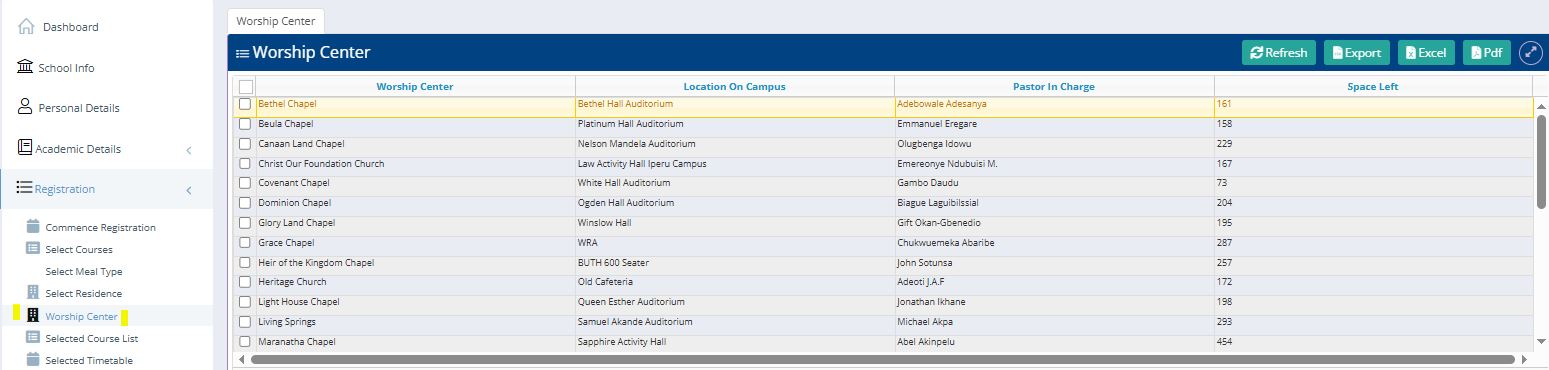
Access Path: In the primary navigation sidebar, click on the "Registration" dropdown menu.
Selection: Click on the "Worship Center" sub-link located between the "Select Residence" and "Selected Course List" options.
2. Selecting a Worship Center
The interface presents a comprehensive list of available chapels and churches on campus.
Available Information: For each entry, the system displays the Worship Center name, its Location On Campus, the Pastor In Charge, and the Space Left (remaining capacity).
Capacity Awareness: It is recommended to check the "Space Left" column before making a selection, as popular centers may fill up quickly.
The Action: To choose a center, click the checkbox located on the far-left side of the desired row. For example, selecting "Bethel Chapel" would require clicking the box next to its name.
3. Using the Action Button
Once a selection has been made, the student must engage with the system's action tools to confirm or manage the choice.
Location: The action utilities are located in the top-right toolbar of the Worship Center table.
Executing the Selection: After checking the box for your preferred center, use the "Action" or "Refresh" buttons to update your registration status.