Documentation
UMIS general documentation
/ Online Examination
Online Examination Access & Authentication
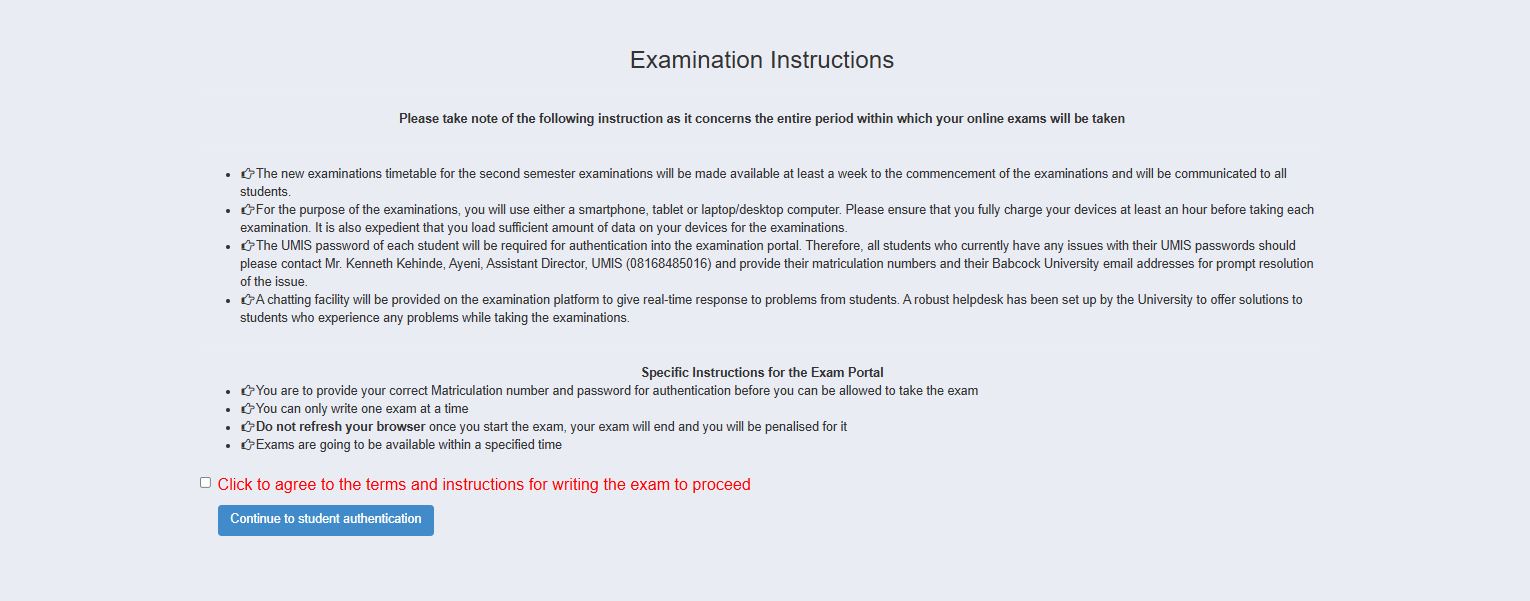
1. Review Examination Instructions
Before proceeding, ensure you have met the technical requirements:
Device Readiness: Use a smartphone, tablet, or laptop/desktop computer.
Power & Data: Fully charge your device at least one hour before the exam and ensure you have sufficient data.
Authentication Prep: You will need your correct Matriculation number and UMIS password for authentication.
2. Agreement & Action Box
To move forward to the exam selection, you must interact with the consent section:
Action: Click the checkbox next to the text: "Click to agree to the terms and instructions for writing the exam to proceed."
Submit: Once the box is checked, click the blue "Continue to student authentication" button.
3. Student Authentication
After clicking the action button, you will be prompted to verify your identity:
Login: Enter your Babcock University credentials (afolabie@babcock.edu.ng).
Password: Input your UMIS password in the field provided.
Note: If you encounter issues with your UMIS password, contact the Assistant Director, UMIS at 08168485016.
Final Step: Click Next.
4. Exam Choice
Upon successful authentication, your specific examination choices will be displayed on the portal.
Selection: Choose the specific exam session you are scheduled for.
Constraint: Note that you can only write one exam at a time.
Browser Care: Do not refresh your browser once the exam starts, as this will end your session and may lead to penalties.