Documentation
UMIS general documentation
/ Pay for Previous Semester
Previous Semester Management
1. Pay for Previous Semester
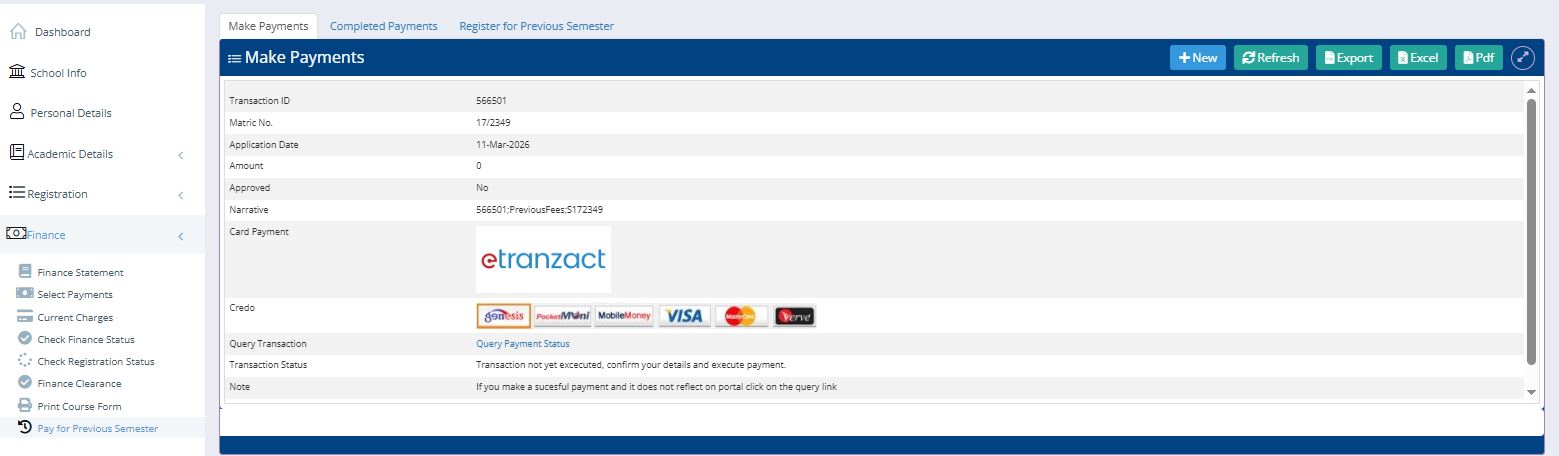
Navigation: Locate the Finance dropdown menu on the left sidebar and select Pay for Previous Semester.
Transaction Details: On the Make Payments tab, you will see your specific transaction details including:
Matric No: 17/2349
Application Date: 11-Mar-2026
Narrative: Displays your transaction ID followed by
PreviousFees.
Payment Execution: Choose a payment provider (e.g., eTranzact or Credo for cards like Visa, Mastercard, or Verve) to execute the payment.
Verification: If a payment is successful but not reflected, click Query Payment Status to manually refresh the record.
2. View Completed Payments
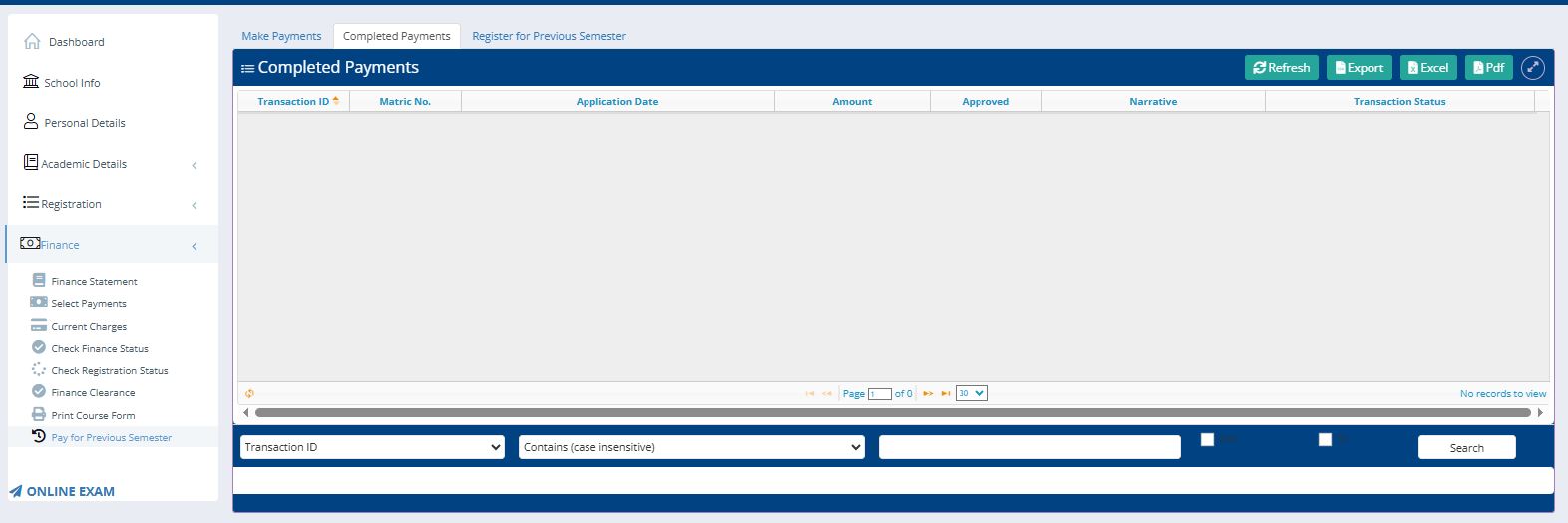
Navigation: Click the Completed Payments tab at the top of the main panel.
Review: This section displays a table of all successful transactions, including the Transaction ID, Amount, and Approval Status.
Search/Export: Use the search bar at the bottom to find specific IDs or use the Excel/Pdf buttons at the top right to download your payment receipts.
3. Register for Previous Semester
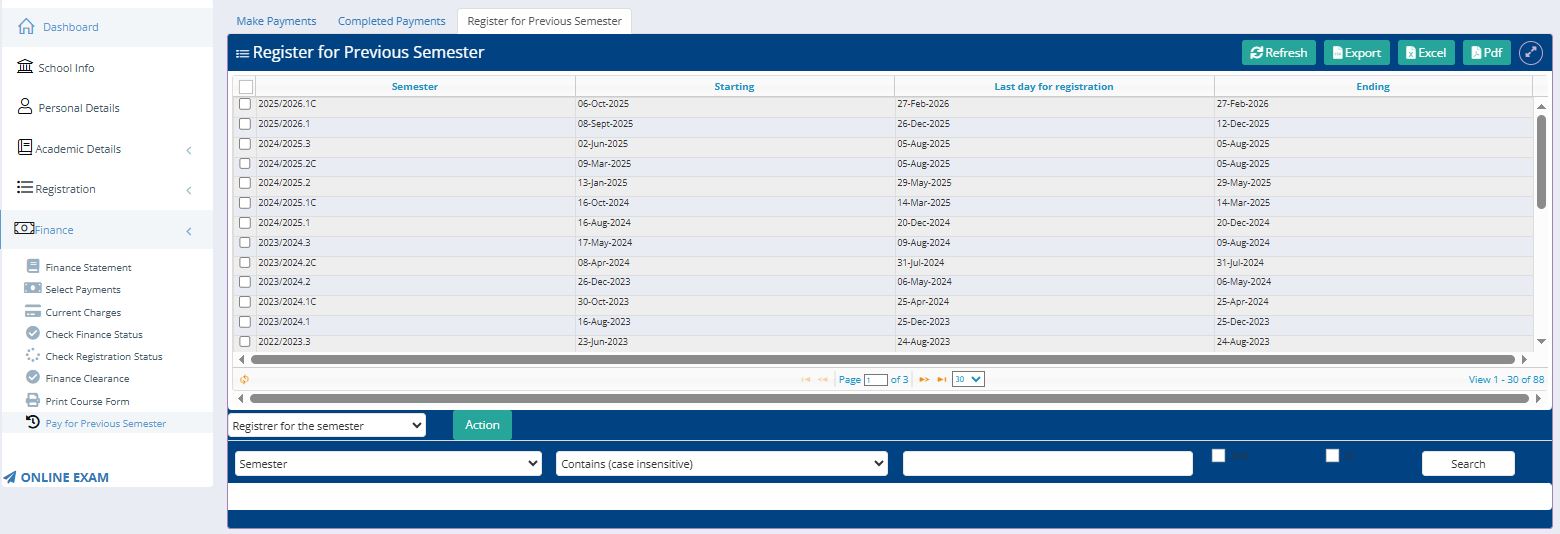
Navigation: Click the Register for Previous Semester tab at the top of the panel.
Selection: Check the box next to the desired session from the list (e.g., 2025/2026.1C which starts on 06-Oct-2025).
Finalizing Action: 1. Scroll to the bottom of the table to the Register for the semester dropdown menu. 2. Click the teal Action button to process the registration for the selected session.