Documentation
UMIS general documentation
/ Submit Registration
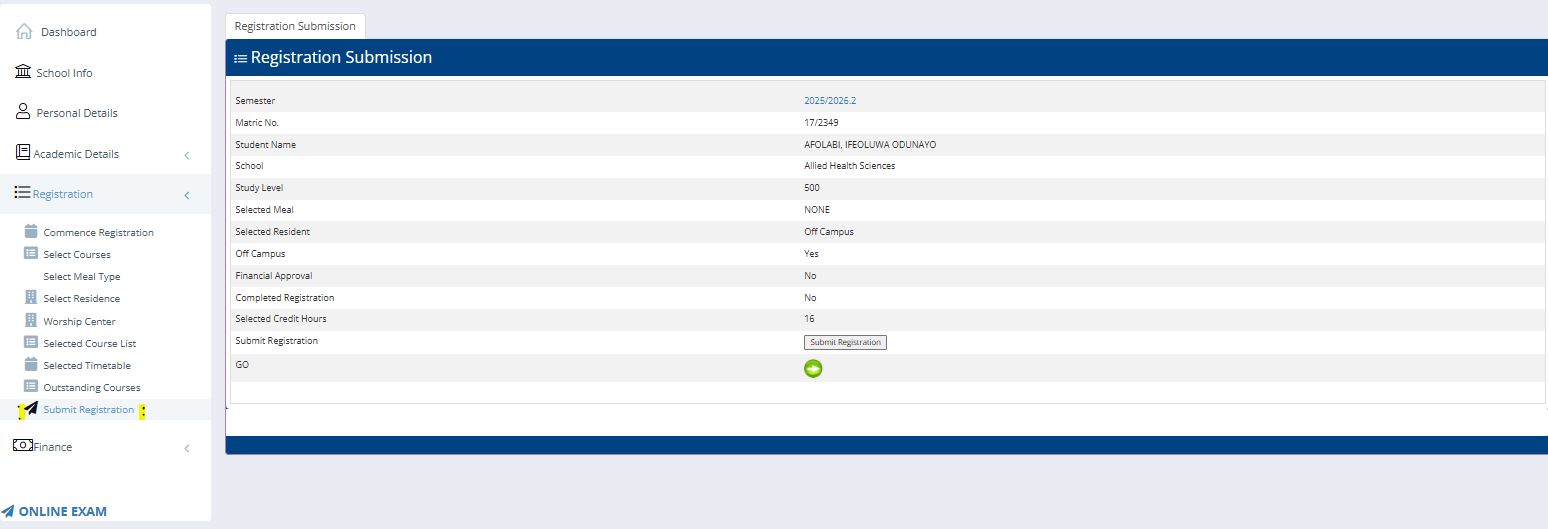
📘 Submit Registration Module
1. Overview
The Submit Registration page is the final stage of the course registration process in the university student portal.
This module allows students to confirm and officially submit their course registration for a specific semester after completing all required registration steps.
Once submitted, the system records the registration in the database and marks the student’s registration status as completed for that semester.
2. Location in the Portal
Navigation path:
Dashboard → Registration → Submit Registration
This module appears after the student has completed the following steps:
Commence Registration
Select Courses
Select Meal Type (if applicable)
Select Residence
Select Worship Center
Review Selected Course List
Review Timetable
Check Outstanding Courses
Only after these steps can the student proceed to Submit Registration.
3. Information Displayed on the Page
Before submission, the system displays a summary of the student’s registration details for verification.
Fields Explained
Field | Description |
|---|---|
Semester | The academic session and semester being registered |
Matric No. | Unique student identification number |
Student Name | Full name of the student |
School | The academic school or faculty |
Study Level | Current academic level of the student |
Selected Meal | Chosen meal plan (if applicable) |
Selected Residence | Accommodation selection |
Off Campus | Indicates if the student lives off campus |
Financial Approval | Shows whether the student’s fees have been approved |
Completed Registration | Indicates whether registration has already been submitted |
Selected Credit Hours | Total credit units selected by the student |
This summary ensures the student reviews their registration information before submission.
4. Submit Registration Button
The Submit Registration button is the action used to finalize the course registration.
When the student clicks this button, the system performs several checks before accepting the submission.
5. Step-by-Step Process to Submit Registration
Step 1 – Review Registration Details
The student reviews the information displayed on the page including:
Selected courses
Credit hours
Residence
Meal plan
Registration status
This ensures the information is correct.
Step 2 – Click “Submit Registration”
The student clicks the Submit Registration button.
This action triggers the registration submission process.
Step 3 – System Validation
The system performs several validation checks such as:
Ensuring the student has selected courses
Confirming credit hours are within the allowed range
Checking financial approval status
Verifying no missing registration requirements
If any condition fails, the system prevents submission and displays an error.
Step 4 – Registration Record Update
If all conditions are satisfied, the system updates the database by:
Saving the selected courses
Recording the semester registration
Updating registration status
Example system logic:
Registration Status = CompletedStep 5 – Confirmation
Once successfully submitted:
The system marks Completed Registration = Yes
The registration becomes official and recorded
The student cannot modify the registration unless reopened by administration
Step 6 – Proceed (GO Button)
After submission, the student can click the GO button to proceed to the next stage or return to the dashboard.
6. System Controls and Restrictions
The portal enforces certain rules to maintain academic integrity.
Students Cannot:
Submit registration without selecting courses
Exceed allowed credit hours
Submit registration without meeting financial requirements
Administrators Can:
Reopen registration
Modify submitted records if necessary
7. Importance of the Submit Registration Module
This module ensures that:
Student course selections are officially recorded
Academic departments can track student enrolments
Timetables and class lists are generated
Students become eligible for examinations
Without submission, registration is considered incomplete.