Documentation
UMIS general documentation
/ Unofficial Transcripts
This documentation provides a step-by-step guide on how the Unofficial Transcript module works within the institutional portal. This feature allows students to view and download their academic history, including GPA trends and course-by-course performance, for advising and personal record-keeping.
Step 1: Accessing the Academic Details Menu
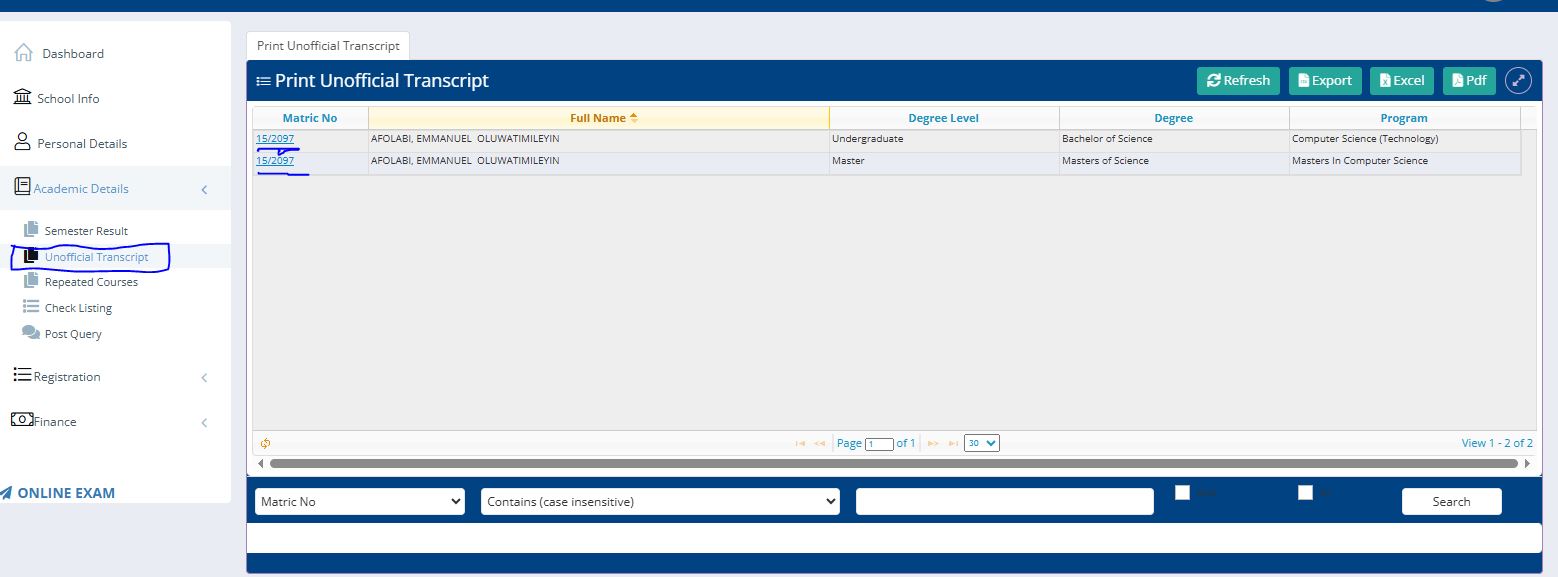
The unofficial transcript is housed under the academic records section of the sidebar.
Action: Locate and click on "Academic Details" in the left-hand navigation sidebar.
Sub-menu: Clicking this will expand a list of options. Select "Unofficial Transcript" from the dropdown list.
Step 2: Selecting the Degree Level
Because a student may have completed multiple programs at the institution, the system requires you to select the specific record you wish to view.
Interface: A table will appear listing your available academic records.
Selection: You will see entries for different degree levels (e.g., Undergraduate for a Bachelor of Science or Master for a Masters of Science).
Download: Click on the specific Matric No link (highlighted in blue) for the degree record you want to generate.
Step 3: Reviewing the Transcript Header
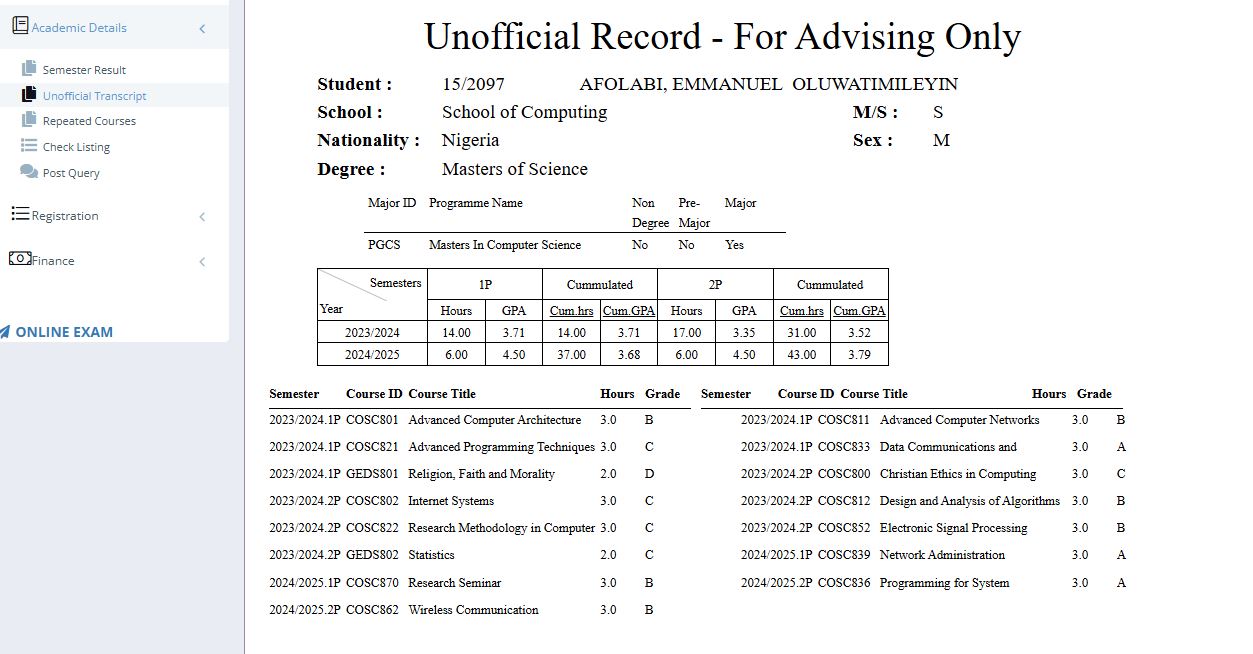
Once selected, the system generates an "Unofficial Record - For Advising Only". The top section of the document contains vital student and program data:
Student Identity: Confirms the name, matric number, sex, and nationality.
Program Information: Displays the School (e.g., School of Computing), the Degree pursued, and the specific Major ID.
Step 4: Analysing the Performance Summary
The transcript provides a high-level summary table that tracks progress across different years and semesters.
Semester GPA: Shows the Grade Point Average earned in a specific period (e.g., 3.71 in 2023/2024.1P).
Cumulative GPA (CGPA): Tracks the running total of your academic standing (e.g., progressing from 3.71 to 3.79).
Credit Hours: Summarizes the total units attempted and earned to date (e.g., 43.00 total hours).
Step 5: Detailed Course Breakdown
Below the summary, the document lists every individual course taken, organized by semester.
Course ID & Title: Provides the official catalog code and name (e.g., COSC839 Network Administration).
Units & Grades: Shows the credit value of the course and the final grade received (e.g., 3.0 hours with a grade of A).