Documentation
General Overview for the Experience Management System
/ Interface Theme Customization (Dark Mode)
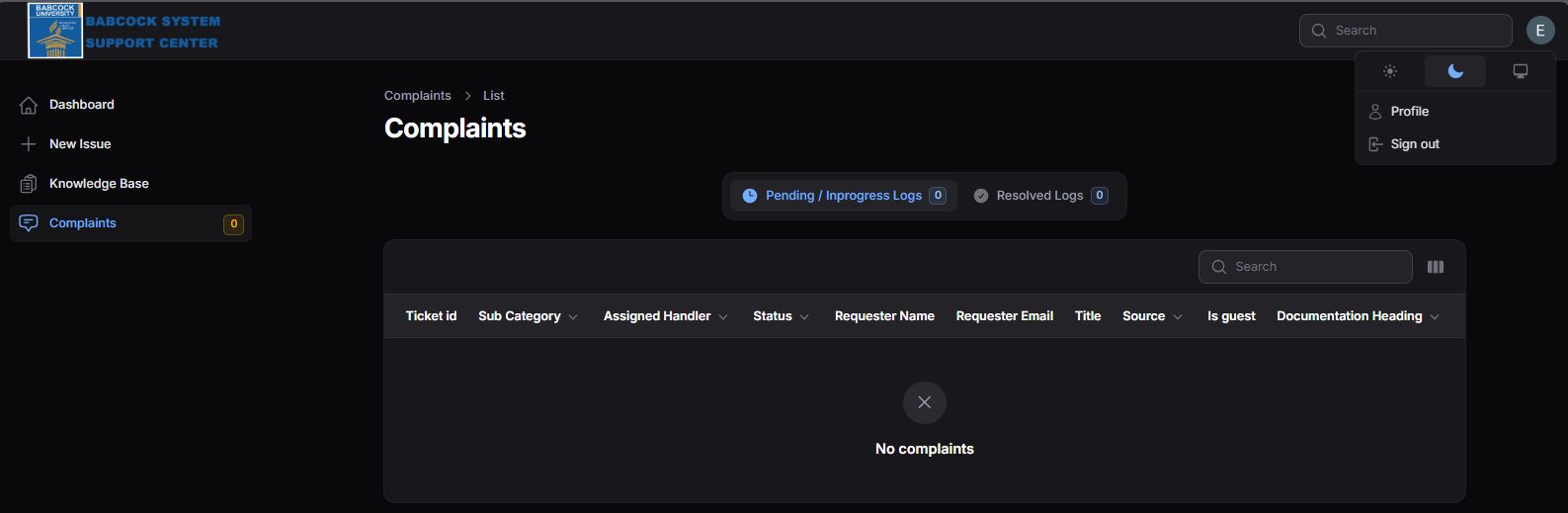
The system allows users to toggle between Light and Dark modes to suit their environment or visual preference.
Switching to Dark Mode:
Locate the user profile icon (usually an initial, like 'E') in the top-right corner of the header.
Click the icon to reveal the utility dropdown menu.
Select the Moon Icon at the top of the dropdown to activate the dark theme.
Visual Analysis: In Dark Mode, the interface transitions to a high-contrast black background with white primary text and subdued blue accents for navigation links.